Adding Additional Color Profile To Your GHv4 Saber
The following guidance is to help those seeking to add more color profiles to Golden Harvest v4 electronics (Legacy or Drop-in Cores). *Before attempting any changes to your saber, save a copy of your original files so that you may start over at any time.
-
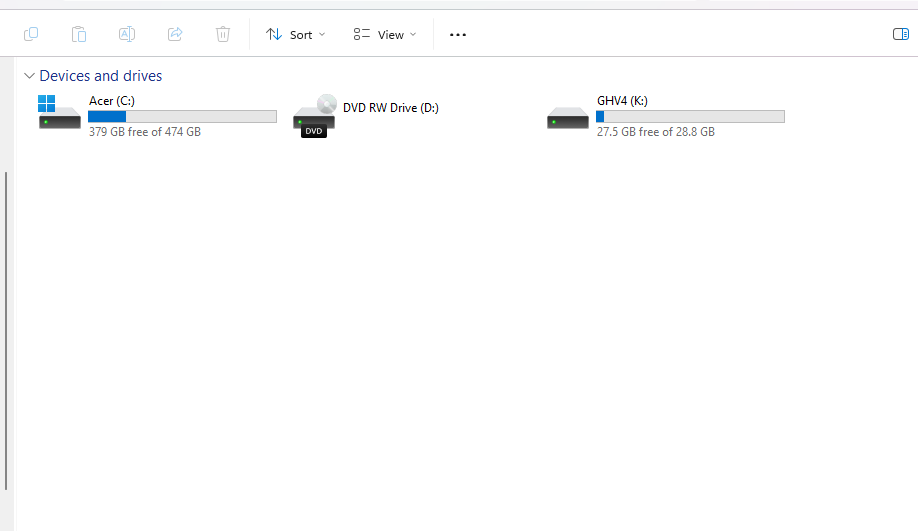
Connect your saber to your PC while your saber is in idle mode (the blade is not ignited and the saber is not in deep sleep mode). Locate the drive labelled "GHv4".
-
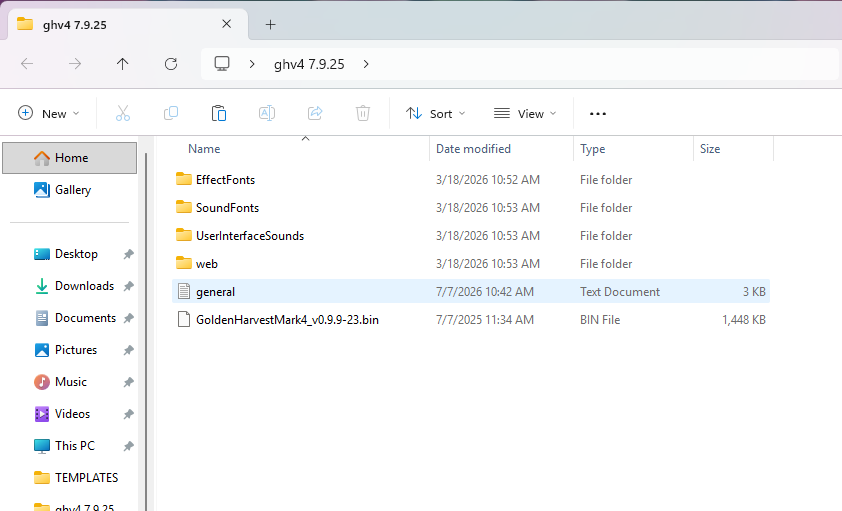
Open the file labelled "general" or "general.txt"
-
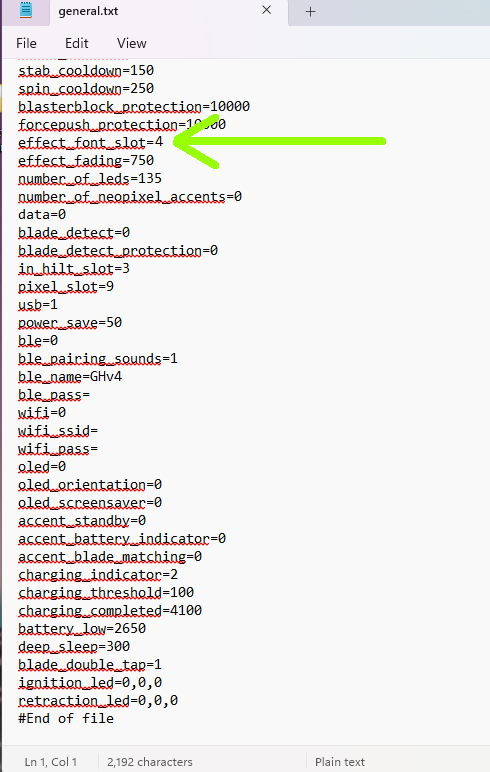
Scroll down and find "effect_font_slot". Note which number is here it may differ from what is pictured below:
-
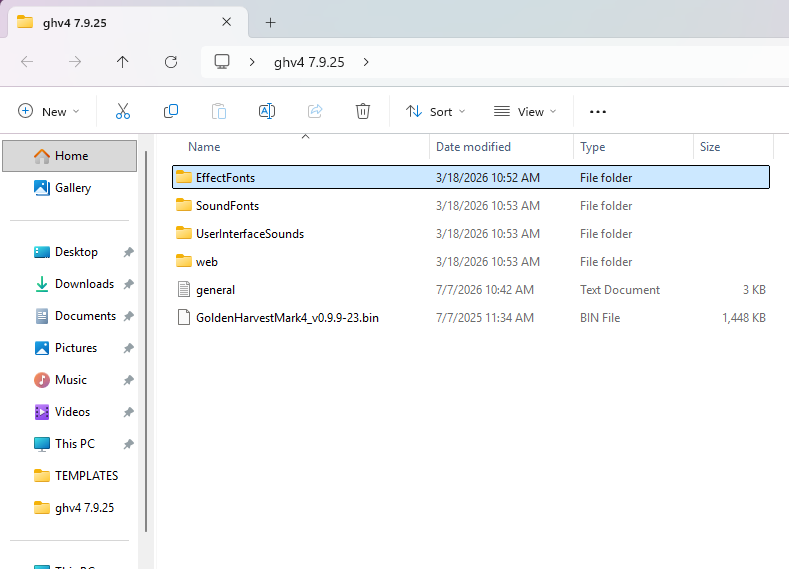
Close the "general" file and then open the "EffectFonts" folder.
-
Here, open the folder that corresponds with the number that was listed next to "effect_font_slot=" in the "general" file. For RGB sabers it should be either 3 or 4.
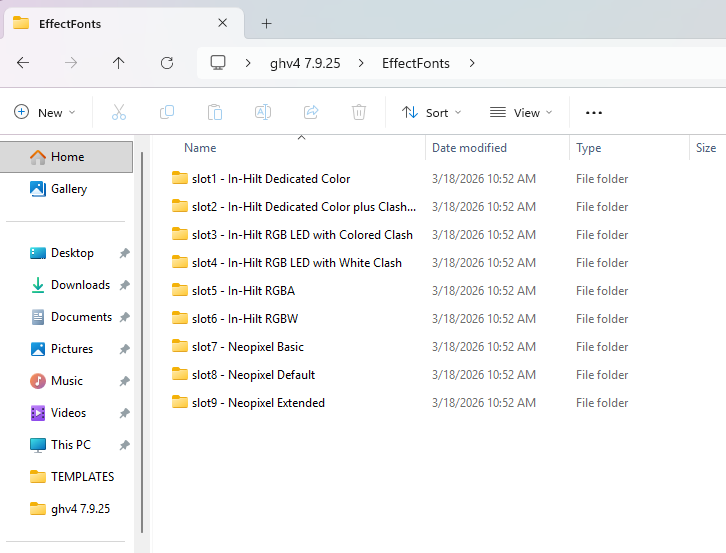
-
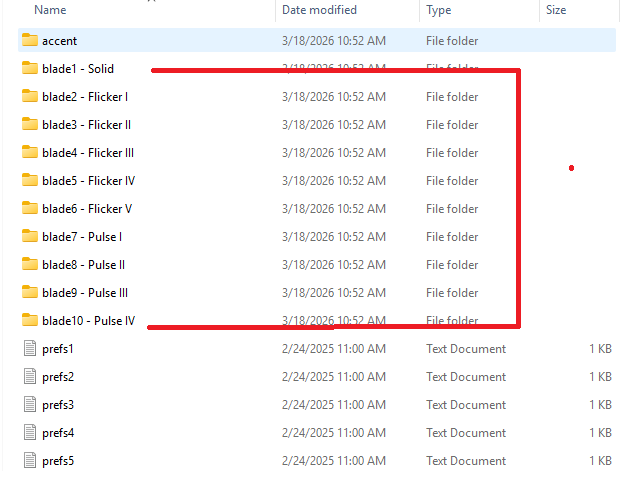
From here, you will need to drag and drop the new color files into each blade style folder
Let us know if you need more help! email Help@saberforge.com